iPhone Battery Draining Fast? 4 Fixes Most Miss
When you look at what everyday iPhone users struggle with most, the questions almost always come down to practical, day-to-day survival with the device. While tech experts focus on processors, benchmark scores, and camera megapixels, most people simply want their phone to last until bedtime without scrambling for a charger.
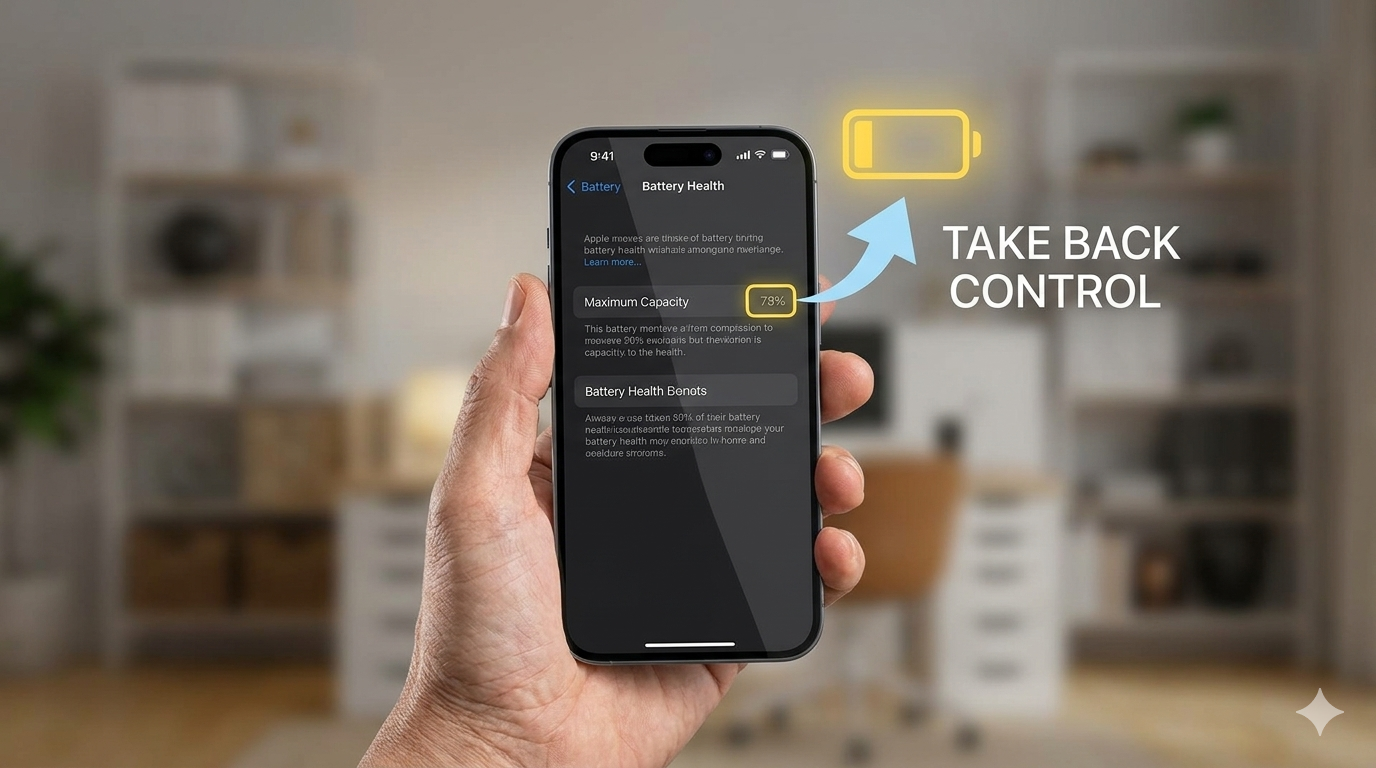
An iPhone displaying battery-saving tips with a text overlay "TAKE BACK CONTROL".
The reality is that our smartphone has become our bank, our keys, our map, and often our lifeline. Watching the battery percentage drop before lunchtime isn't just annoying; it can disrupt the entire day.
The good news? Many battery-draining settings can be adjusted in just a few minutes.
1. Turn Off Background App Refresh
📱 Go to: Settings → General → Background App Refresh
Turn it completely Off or set it to Wi-Fi Only.
This prevents apps from constantly updating in the background when you're not using them. Most people never notice a difference in functionality, but they often notice improved battery life.
2. Reduce Unnecessary Location Tracking
📍 Go to: Settings → Privacy & Security → Location Services
Review your apps and change permissions from "Always" to "While Using the App" whenever possible.
Many shopping, restaurant, parking, and retail apps don't need continuous access to your location when they're not actively being used.
3. Use Low Power Mode
🔋 Swipe down from the top-right corner of the screen and tap the battery icon, or go to:
Settings → Battery → Low Power Mode
This reduces background activity, limits visual effects, and helps stretch battery life when you're away from a charger. It's one of the fastest ways to gain extra hours of use from a struggling battery.
4. Check Battery Health
🩺 Go to: Settings → Battery → Battery Health & Charging
If your battery health is below 80%, your battery may no longer hold a charge effectively.
Apple introduced battery health monitoring and performance management after criticism and legal challenges related to how older devices handled degraded batteries. If your battery health is significantly reduced, replacing the battery can often make an older iPhone feel new again, at a fraction of the cost of replacing the device.
The Hidden Cost of "Tech Friction"
As software becomes more powerful and feature-rich, older devices naturally have to work harder. More notifications, more background services, and more connected apps can gradually reduce performance and battery life.
The result is what I call tech friction — those small daily annoyances that make technology feel like it's working against you instead of for you.
Fortunately, a few simple adjustments can often restore hours of battery life and make your device noticeably easier to use.
Is Tech Friction Working Against You?
Don't spend hours digging through confusing menus.
As a street-smart technology concierge and architect of independence, I help people throughout San Diego make technology simpler, safer, and less frustrating.
Reach out for a one-hour Digital Device Audit in your home. Together we'll optimize battery life, improve security, reduce tech frustration, and make sure your devices work for you — not against you.
📞 Contact E-men to schedule your Digital Device Audit.