Missing Notifications on Apple Devices
It’s annoying when you feel like your alerts are playing hide-and-seek. You want to know that your important messages and calls are reaching you, whether you’re looking at your phone or glancing at your watch (especially when you are busy!).
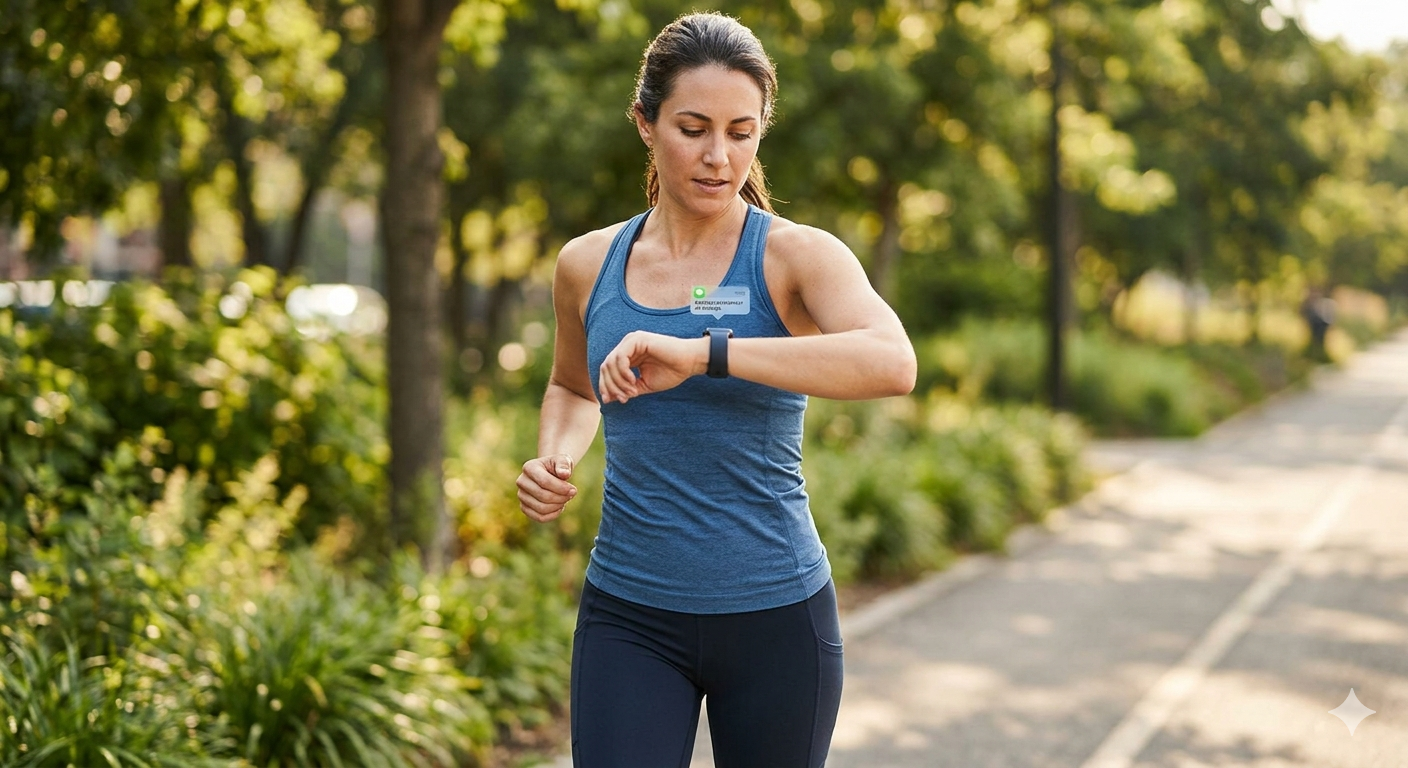
Stop the hide-and-seek game with your alerts. Simple steps to ensure your notifications reach you every time.
Usually, when notifications go missing, it isn't a glitch; it’s just a setting that’s slightly off. Here is how to make sure your Apple Watch and iPhone are working together to keep you in the loop.
1. Is Your Watch Actually Unlocked?
Check your Apple Watch screen.
If you see a small blue padlock icon at the top, it’s locked. Your watch won't show any alerts until it's unlocked.
Type in your passcode. Just a heads-up: make sure the band is snug so it doesn't lock back up while you’re wearing it.
2. Check Your Focus Modes
Swipe down from the top-right corner of your iPhone to open the Control Center.
Check for the crescent moon icon or a label like "Do Not Disturb" or "Work."
If it’s highlighted, tap it to turn it off. Even a small "Do Not Disturb" setting can accidentally silence both your devices at once.
3. "Mirror" Your Settings
Open the Watch app on your iPhone.
Tap the My Watch tab at the bottom left, then tap Notifications.
Find the apps you’re worried about (like Messages or Mail).
Set them to mirror my iPhone. This tells your watch to follow the same rules you have on your phone, so nothing gets filtered out.
4. Are They Talking to Each Other?
Open Settings on your iPhone and make sure Bluetooth is ON.
On your watch, swipe up from the bottom of the screen to check the status.
If you see a red iPhone icon or a red "X," they’ve lost their connection. Just bring them closer together, and they’ll shake hands and reconnect automatically.